

Details & info
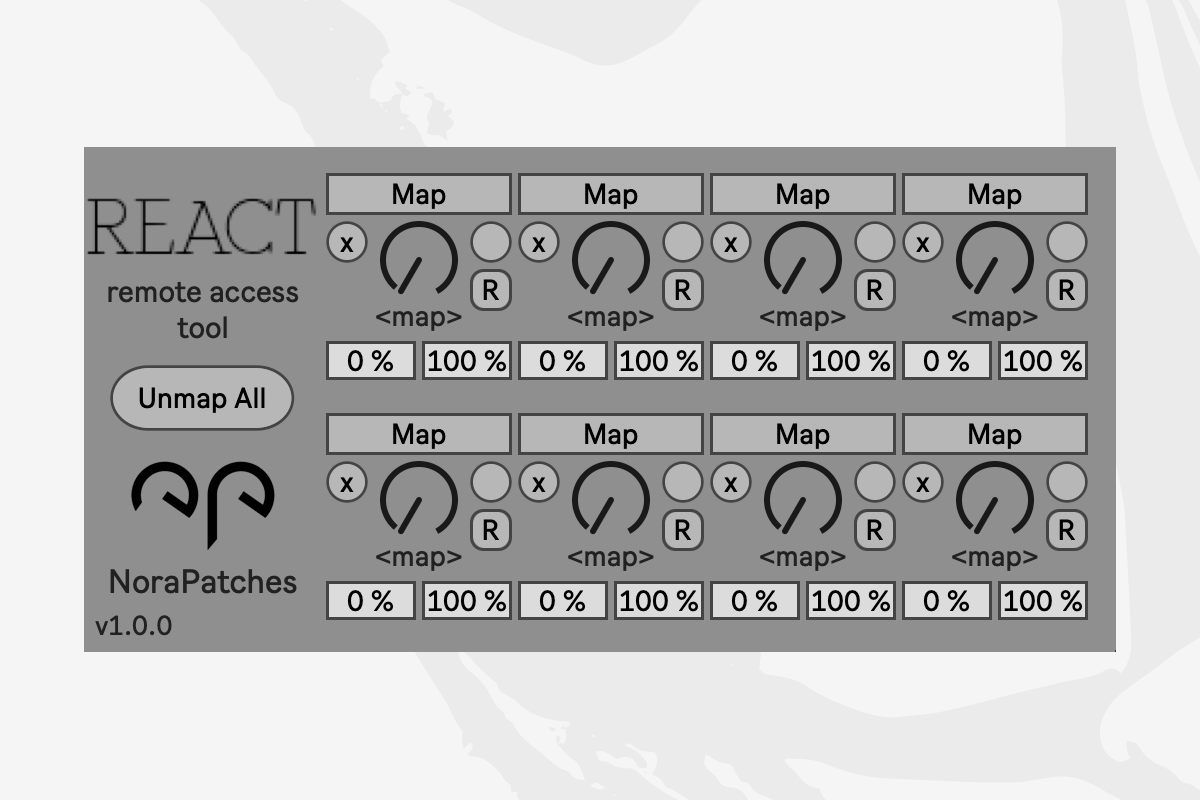
REACT is a Max 4 Live utility device that allows not only mapping to certain parameters, but also features two mapping modes; remote and macro.
In remote mode the mapping to the parameter is exclusive and after the mapping, nothing else is able to adjust the mapped parameter other than the Macro dial.
In macro mode the mapping to the parameter is non-exclusive and after the mapping the original parameter is still adjustable on its own – these changes are reflected on the Macro dial.
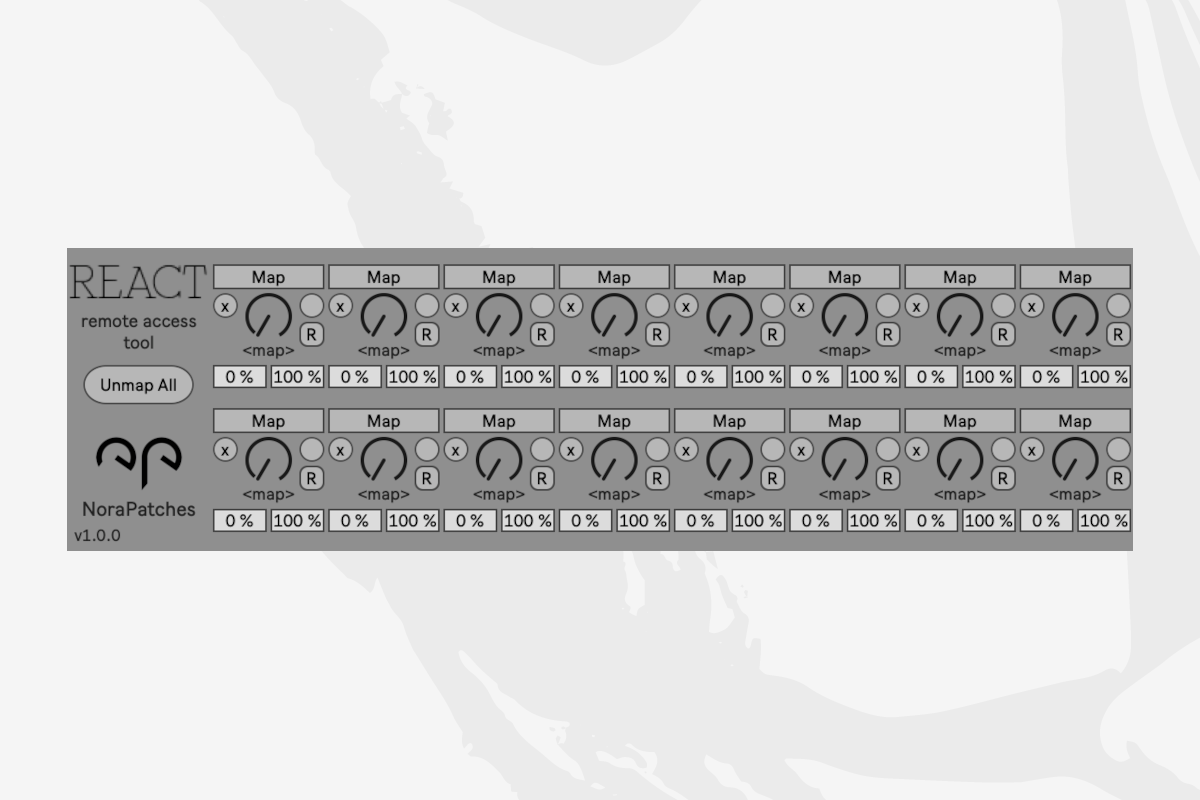
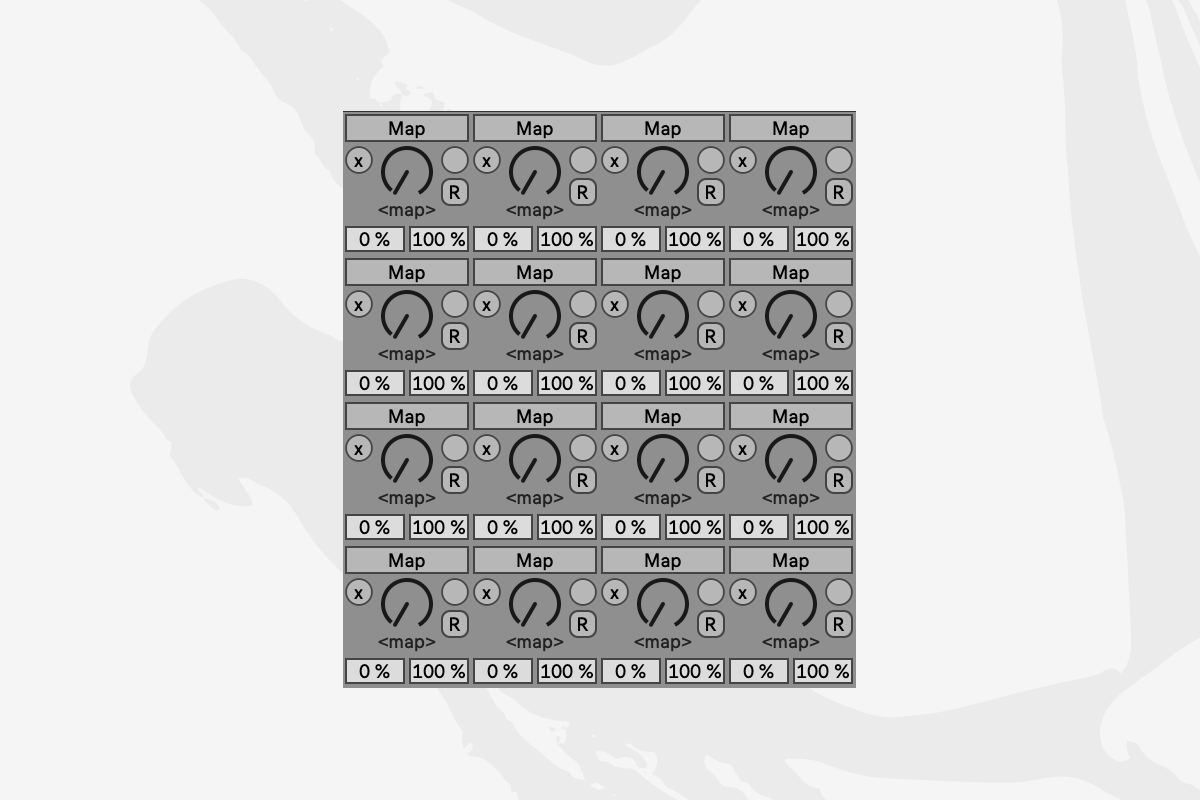
The plugin comes in three instances; REACT8, REACT16t and REACT16w*.
Main features
- 2 Mapping modes; remote (exclusive) and macro (non-exclusive)
- Target adjustable range in remote mode
- 8/16 dials
- 3 variations, tray and window GUI available
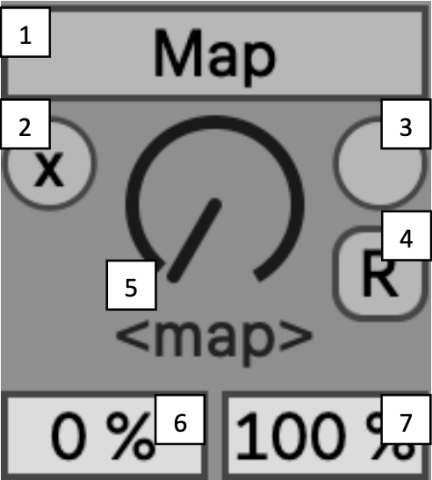
1. The Map Button
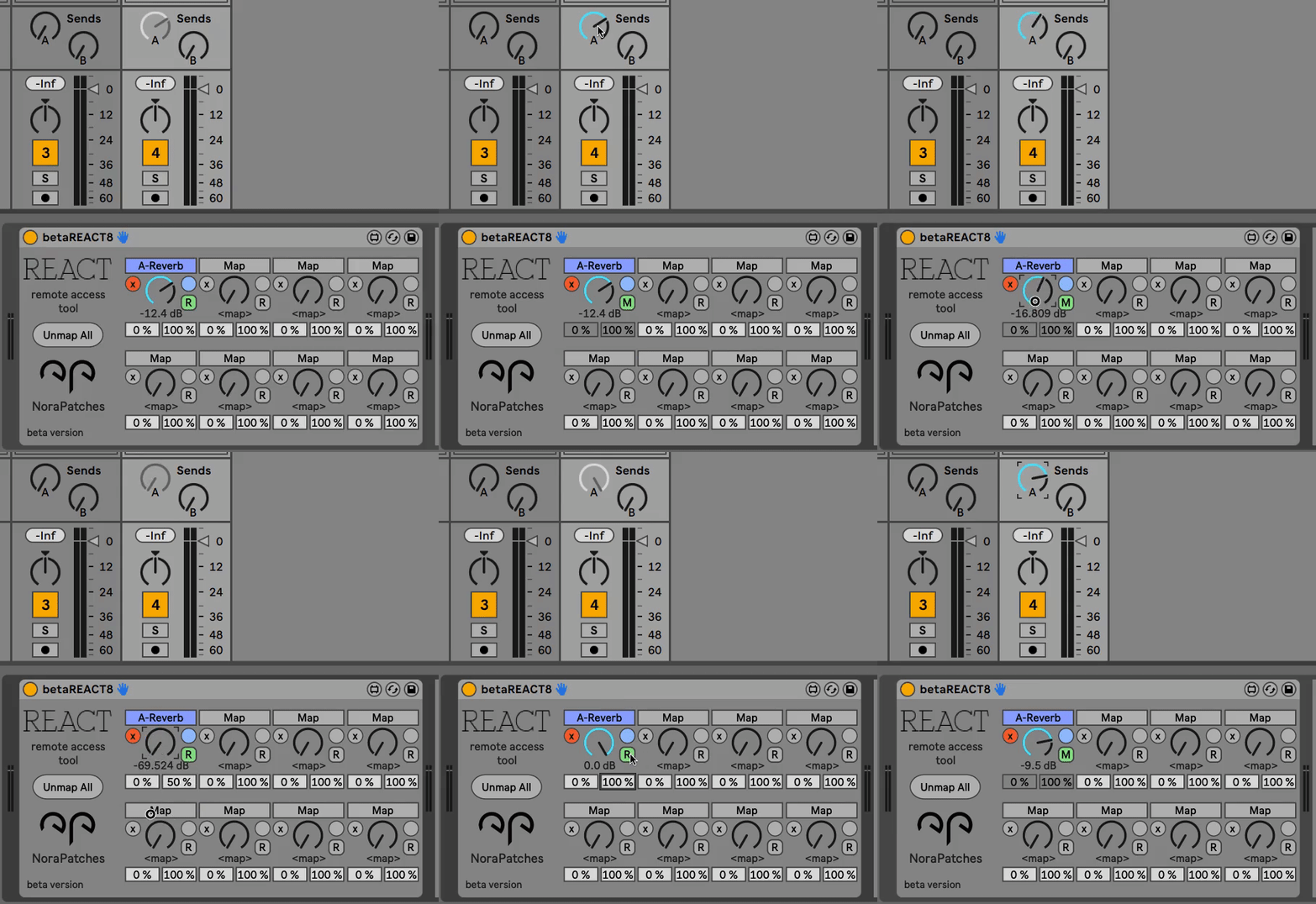
By default, the Map button is grey (when no parameter is mapped to Macro Dial) and starts blinking with an orange colour when is armed for mapping. Clicking on the button again while it is blinking cancels the mapping. When a parameter is mapped successfully, the Map button displays the parameter name and becomes the same colour as the track containing the device of the mapped parameter. You can overwrite the mapping by clicking the button again and selecting a new target.
2. The Un-map Button
By default, the Un-map button is grey (when no parameter is mapped to Macro Dial) and it becomes red once a parameter has been mapped. Clicking this button results in un-mapping from the parameter. The Un-map button then becomes grey again.
3. Display Target Button
By default, the Display button is grey (when no parameter is mapped to Macro Dial) and it becomes blue once a parameter has been mapped. Clicking on this button results in the device containing the parameter to be shown in focus in the Live project.
4. Mode Selector Button
By default, the Mode Selector button is grey (when no parameter is mapped to Macro Dial) and it becomes green once a parameter has been mapped. There are two available mapping modes to choose from; remote and macro.
Remote [R]: In remote mode the mapping to the parameter is exclusive and after the mapping, nothing else is able to adjust the mapped parameter other than the Macro dial.
Macro [M]: In macro mode the mapping to the parameter is non-exclusive and after the mapping the original parameter is still adjustable on its own – these changes are reflected on the Macro dial.
5. Macro Dial
The Macro Dial controls the mapped parameter. The range of the Macro Dial is always from 0.0 to 1.0 and it is scaled from and to the mapped parameter. When mapped, the default value is applied to the Macro Dial. When un-mapped, the default value becomes zero.
6. Target Minimum
Sets the lower threshold of the depth of controlling the mapped parameter. If the lower threshold is greater than the upper threshold, reverse mapping can be achieved.
The target minimum is only active in remote [R] mode.
7. Target Maximum
Sets the upper threshold of the depth of controlling the mapped parameter. If the lower threshold is greater than the upper threshold, reverse mapping can be achieved.
The target maximum is only active in remote [R] mode.
How to use
- Place REACT8/16w/16t on any Track in Ableton Live.
- Map to any mappable parameter you like.
- Control mapped parameters with Macro Dials.
 Nora Patches